eobdtool

2015年11月26日星期四

VCM II Do Ford Module Programming on Focus 2008.25MY

This is the instruction on how to do Ford Module Programming on Focus 2008.25MY, by Ford VCM 2 diagnostic tool.
Compatible device:
Video instruction:
Step-by-step instruction:
Open Ford Module Programming on Desktop.


Read the user information and click Continue.
Select New Session.
Establish an internet connection and then click Confirm.
Click the tick button.

Establishing communication to PCM.
Select vehicle information “2008.25 MY”. Click the tick button.
Prompt: was the vehicle built before 2008 March? Select No and click the tick button.
Waiting...
Click YES if the vehicle specification is correct.

RO Odometer interface: click the tick button.
Then you will read as follows:

Select Module Programming. Then click the tick button.

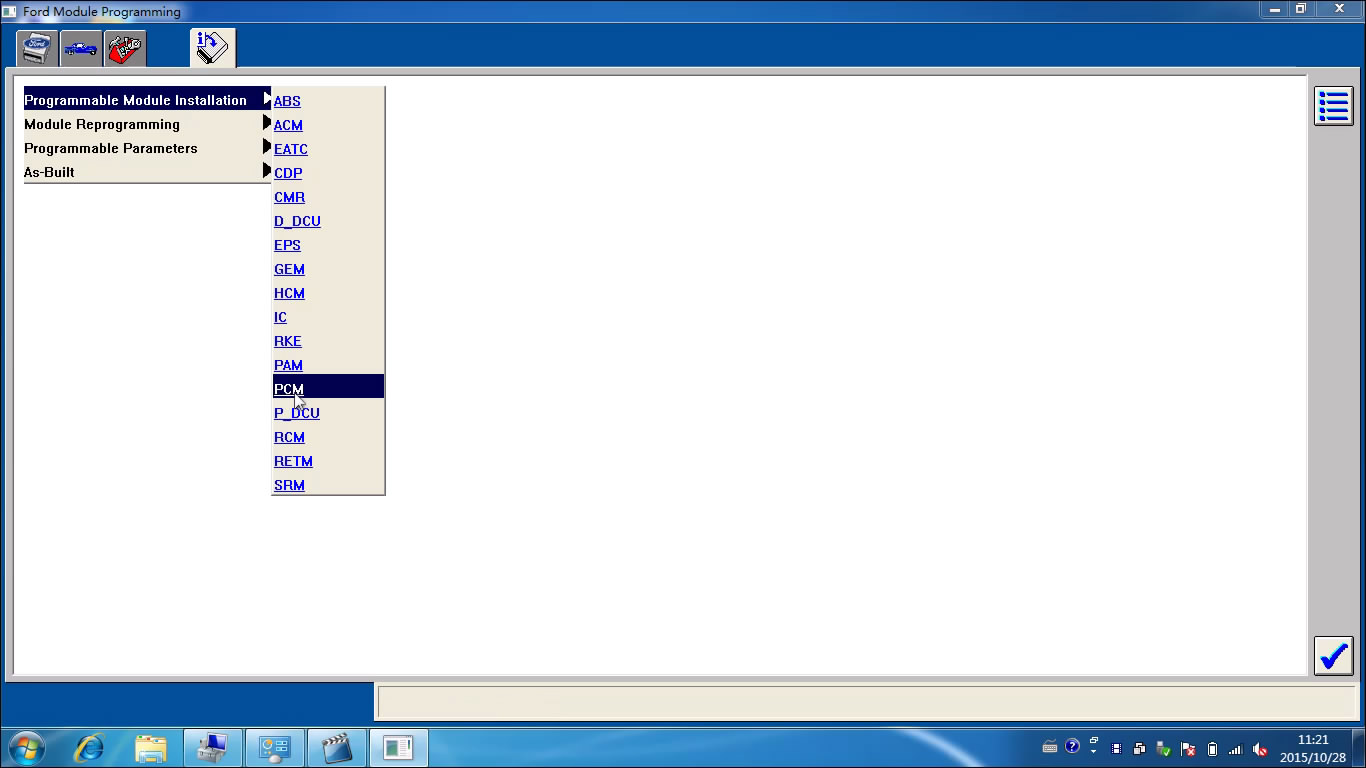
Select Programmable Module Installation>>PCM. Then click the tick button.

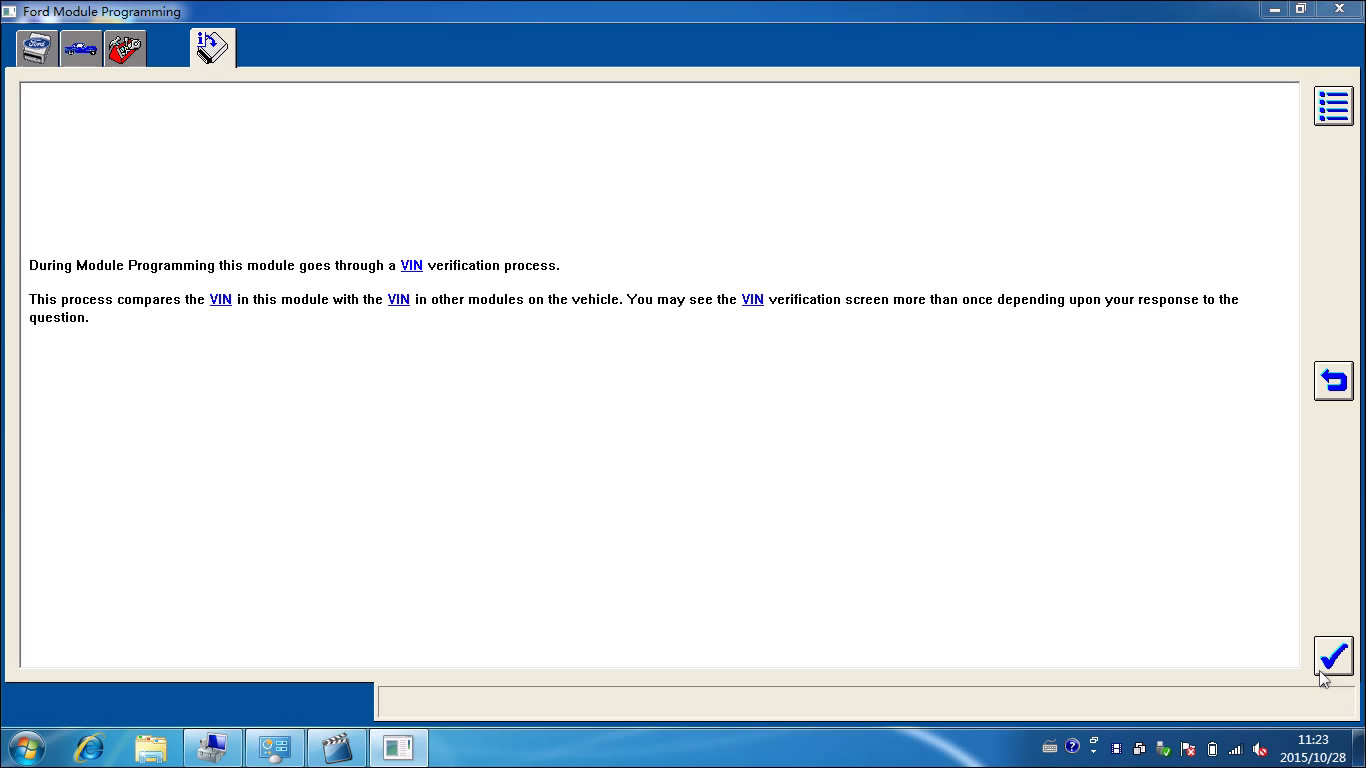
Click the tick button.

Establish an internet connection and then click Confirm.
Waiting...
Operator action: Set ignition switch to OFF (Position 0) and then click the tick button.
Click the tick button.

Click YES if the VIN displayed is correct.
Install a new module in vehicle and then click Confirm.
Note: Do not start a reprogramming session with a low battery on the vehicle and/or programming tool.
The fuel pump and the engine cooling fans may run the following procedure.
If you are programming a 6.0L diesel, the PICM relay must be removed before programming.

Operator action: Set ignition switch to ON and then click the tick button.
Erase procedure in progress, please wait...
PCM reprogramming, please wait...

Operator action: Set ignition switch to OFF (Position 0) and then click the tick button.
Operation in progress...
Operator action: Set ignition switch to ON and then click the tick button.
Operator action: Set ignition switch to OFF (Position 0) and then click the tick button.
Calibration has been loaded and checked and then click the tick button.
Prompt: If you programmed a 6.0L diesel, please reinstall the FICM relay. Click the tick button.
Read and click the tick button.

Operator action: Start engine, NOTE: Do not depress the throttle pedal. Then click the tick button.
Operator action: Set ignition switch to OFF (Position 0) and then click the tick button.
Operator action: Set ignition switch to ON and then click the tick button.
Clearing DTCs...

Operator action: Set ignition switch to OFF (Position 0) and then click the tick button.
Click the tick button.

Done!!

VXDIAG VCX NANO Ford IDS updated to V97

Ford IDS software of  VCM2 Ford & Mazda 2-in-1 diagnostic tool has  newly updated to V97 (V97.01).
Software version: Ford IDS V97, Mazda IDS V95


Compatible Hardware:
VXDIAG VCX NANO Ford and Mazda 2-in-1 (Item No:SP239)
VCMII 2-in-1 diagnostic tool for Ford IDS and Mazda IDS (Item No:SP239-B)
Multi-languages:
English/German/French/Italian/Spanish/Dutch/Swedish/Finland/Danish/Norwegian/Portuguese


Computer requirement:
  1. Computer has at least 4GB Memory
  2. Computer needs to be produced after 2000 year, computer too old can not run the software.
  3. OS needs to be WINDOWS XP SP3. If you install the software on VMware, then you can install it on Win7 64bit laptop.
Ford VCM 2 IDS V97 Installation main steps:
  1. Install V81 calibration files
  2. Install V91 IDS
(Should have 3 day trail information after install V91 IDS, otherwise fail to install, quit the IDS.)
  1. Install VCM2 IDS V96. if IDS V96 runs well, continue operation
  2. Install IDS V97, make sure it runs OK
  3. Then install the VX Driver
VX Driver can be downloaded free here:
Free download IDS V97 VCM2 2.2.01510 VX Driver
http://www.chinaautodiag.com/download/vx-driver-vcm2-2.2.0.1510.zip
6. Test and diagnose cars
7. Install frozen software
NOTE:
When you open the software, it prompt you do not have license or license not valid. Do not worry. After you finish the installation, just change the date and time (time zone) setting of master laptop to UTC+08:00 Beijing, ChongQin----, then to click OK. After that, it will be ok to run VMware for FORD IDS software

2015年10月25日星期日

How to install Ford VCMII V97.01 in VMware Player

The new Ford VCMII V97 will be released soon. Here is the Ford VCMII V97.01 installation instruction.
Compatible device:
Steps:
  1. Install VMware Workstation
  2. Establish a new Virtual Machine:Ford IDS
  3. Install IDS V81
  4. Install ids-91.01-full
  5. Install Ford-IDS-96.01-Full
  6. Install IDS-V97.01_Full

  1. Install VMware Workstation
Open My Computer>>Ford IDS (E:), to copy “en_windows_xp.iso” to Local Disk (D:).
Open “VMware-workstation-full-10.0.3-1895310” in Ford IDS (E:).
Click Next to continue.
Click Next, with the selection of “I accept... agreement”.
Select “Typical”.
Click Next to install to this folder or click Change to install to a different folder.
Click Next, with the selection of “Check for product updates on startup”.
Click Next.
Click Next, for shortcuts selection.
Click Continue to begin the process.
Performing the requested operations...
Enter license key:
go to E:\ to open “VMware-workstation-KEY” and copy the first key as “License key”.
Click Finish.
  1. Establish a new Virtual Machine:Ford IDS
Go to My Computer>>Local Disk (D:), to establish a new folder named “Ford VCM II”.
Open VMware Workstation on Desktop.
Select Files>>New Virtual Machine...
Click Next, with “Typical”.
Select Install dics image file (iso), click Browse... Desktop>>My Computer>>Local Disk (D:)>>en_windows_xp.iso
Click Next.
Go to E:\ to open “VMware-workstation-KEY” and copy the second key as “Windows product key”.
Click Next.
Name the Virtual Machine: Ford IDS, and Browse Desktop>>My Computer>>Local Disk (D:)>>Ford VCM.
Click Next.
Maximum disk size (GB): 120.0, click Next.
Click Customer Hardware... Memory>>Memory for this virtual machine: 1024MB. (it should be less than RAM) Click Close.
Click Finish.
Click Open a Virtual Machine.
Click OK.
Click OK.
Windows XP Professional setup...
Error: click OK.
Type your name and click Next.
Continue Windows XP Professional setup...
Installing VMware Tools...
...
Open the Date and Time Properties in VMware and the real computer.
The date and time in VMware should be the same as those in the the real computer.
Turn off the computer in VMware Player.
Click OK.
Close Ford IDS virtual machine.
And remove “Ford IDS” from the library.
Close VMware workstation.

  1. Install IDS V81
Open My Computer>>Ford IDS (E:), to open “VMware-workstation-KEY”.
Copy all lines with “time.synchronize...”.
Open My Computer>>Local Disk (D:)>>Ford VCMII.
Select Tools>>Folder Options.
Select View, to cancel the selection of “Hide extensions for known file types”, click OK.
Right click “Ford IDS.vmx”, select Open with>> Choose Program...>>Notepad. Click OK.
Paste at the last of the notepad, and save the change.

Open VMware workstation.
Select File>>Open...>>My Computer\Local Disk (D:)\Ford VCM II>>Ford IDS.vmx.
Click Create a new virtual machine.
Click Power on this virtual machine.
Click OK.
Click OK.
Open the Date and Time Properties in VMware and the real computer.
The date and time in VMware and those in the the real computer are different.
(Maximize the VMware interface.)
Select Start menu>>My Computer, show on Desktop.

Insert V81 DVD.
Open Computer>>DVD RW Drive (E:)>>VCMDVD.
Select “Calibrations”.
Click “Next”.
Click “Next”.
Click “Install”to begin the installation.
Installing.... (please wait until the software complete installation. Usually it will take about 30min-2h)
Calibration installation success.
Click “Finish” to exit the Wizard.
Click the exit button at the left bottom in VCM DVD interface.

  1. Install ids-91.01-full
Insert V96 DVD.
Open “Computer->DVD RW Drive (E:) Ford IDS”.
Close the “AutoPlay” interface.
Open “ids-91.01-full”
Choose setup language. And click “Next”.
Preparing setup...
Click “Yes” to proceed.
Click “Next”.
Click “Next” with the selection of “I accept the terms of the license agreement”.
Destination: click “Next”.
Click “Install”to begin the installation.
Installing.... (please wait until the software complete installation. Usually it will take about 30min-2h)
IDS icon on Desktop.
Configuring...
Adobe SVG Viewer 3.0 Setup...
Configuring...
Updating the database....
Configuring...
Successfully installed IDS.
Click “Reboot” to restart your computer.
Open “IDS” on Desktop.
Open it and you will get message.

(Note:
If you get this message, wait for several minutes, then IDS will start;
if you wait for more than 20 minutes and IDS cannot start, you have to uninstall IDS and re-install;
if you do not get this message and you can access to IDS, that okay.)
Click Abort IDS Start-Up.
Fill in the dealer type, country, and then click the tick button to continue.
IDS Software - Computer Date Synchronization, click “Continue”.
Open it and you will get message reading a non-renewable Evaluation License.... expire in 3 days.
(Note: If you do not get the message below it means the installation fails, then do not continue to operate.)

Click Continue.
Close IDS-91.1 interface. Click the tick button.

  1. Install Ford-IDS-96.01-Full
Open Computer>>Ford IDS (D:) >>Ford-IDS-96.01-Full.
Preparing setup...
Click “Yes” to proceed.
Click “Next”to update the installed IDS V91.01 to V96.01.
Installing.... (please wait until the software complete installation. Usually it will take about 30min-2h)
Configuring...
Adobe SVG Viewer 3.0 Setup...
Configuring...
Updating the database....
Configuring...
Successfully updated IDS to version 96.01.
Click “Reboot” to restart your computer.
Close Windows Security Center.
Open “IDS” on Desktop.
Click OK.
Minimize IDS-96.01 interface.
Open “Start” menu on Desktop. Start menu>>software updates>>control panel.
Network and Internet Connections>>Network Connections
Connect the vehicle and device Ford VCMII, you will see “Found New Hardware” prompt.
Wait the communication complete.
You will see “Local Area Connection” *ETAS VCI USB*, and close the interface.
Back to IDS-96.01 interface.
Start New Session->All other. Click the tick button.

Establishing communication to PCM...
Select vehicle specification, and click the tick button. E.g. The case here, select “2011 MY”.
Vehicle specification: click “YES” to go on.
Click the tick button.
Select Self Test.
Click the tick button.

Select “All CMDTCs” and click the tick button.
Read and exit.
Delete (deletes session), then to go on.

Close the interface to exit IDS-96.01.
  1. Install IDS-V97.01_Full
Open Computer>>Ford IDS (D:) >>Ford-IDS-96.01-Full.
Preparing setup...
Click “Yes” to proceed.
Click “Next”to update the installed IDS V96.01 to V97.01.
Installing....
Configuring...
Adobe SVG Viewer 3.0 Setup...
Configuring...
Updating the database....
Configuring...
Successfully updated IDS to version 96.01.
Click “Reboot” to restart your computer.
Open “IDS” on Desktop.
Click the tick button to update VCMII software.
Installing Software Update on VCM II...(about 1 hour)
Click the tick button to continue.
Select Start New Session->All other. Click the tick button.

Establishing communication to PCM...
Select vehicle specification, and click the tick button. E.g. The case here, select “2011 MY”.
Vehicle specification: click “YES” to go on.
Select Self Test.
Click the tick button.
Select “All CMDTCs” and click the tick button.
Read and exit.

Done.
Ps. Read more about Ford VCM2 V97.01:

2015年10月11日星期日

Best quality China Clone Ford VCM2 IDS SP177-C PCB board

There are several versions of Ford VCMII diagnostic scanner China clone in the aftermarket. SP177-C is the most widely respected version due to the high PCB circuit board. For those who need to buy good quality VCM2 clone, please check the PCB board layout first.
Best Quality VCM2 A quality PCB (SP177-C VCM IDS V97 without WIFI & SP177-C1 VCM 2 IDSV97  with WIFI)

And another high quality version VCM2 (SP177) NO WIFI with latest IDS V91 also be welcome

2015年9月29日星期二

Ford IDS V96 V97 Installation Order

These days, we obdtool customer service received many complaints about installation problem of Ford IDS. Here is the installation notes for sharing.

Device to use:

Operating system:
Windows XP or few WIN7.

Installation order:
1. IDS V81


2. IDS V91


(note: “a non-renewable Evaluation License has been installed on your computer which will expire 3 days”; if you do not get the message, it means the installation fails, then do not continue.)


3. IDS V96


4. IDS V97
   Open the software “Thunder”, and put the link below to the URL line.
   The link to free download Ford IDS v97.01:
http://www.fordservicecontent.com/Ford_Content/IDS/IDS-97.01_Full.exe


Detailed information about:


2015年9月23日星期三

Free download Ford VCM2 IDS V97 (V97.1) software

Ford VCMII IDS software has been updated to V97.01 (23/09/2015). Free IDS V97 and update instruction is provided below. 


NOTE: IDS V97 is compatible with Ford VCM 2 scanner SP177-1, SP177-C, SP177-C1 and SP177-C2. Do not work on other VCM2.

Software version: IDS V97.1
Operating system: Windows XP/ Windows 7 on VMware (recommended)

Free download Ford IDS V97.1 software
You can download form the link directly or download from Thunder (enter URL to download directly), because the software is huge.


How to update VCM2 IDS to V97?


1.       Have old V81, V91 IDS installed

1) First install C81 Calibration files and then V86 IDS
2) Then install V91 IDS, if the software displays 3 day trial prompt, then continue to install IDS V96, otherwise quit software installation and change another laptop to re-install software
3) After well install V96 IDS, install IDS V97 software
4) Update VCM2 firmware (following instructions below)


2. Have IDS V96 installed

If you already have VCM2 IDS V96 installed, then directly install V97 IDS and update VCM2 firmware.


How to update Ford VCM 2 scanner firmware?

1) Press the power button on VCM2 scan tool main unit

2) Long-press on the power button, connect VCM2 with power supply, wait for all 4 indicators turn on, then release the button. Then connect VCM2 with computer via USB cable
3) Run IDS software, software will prompt to update firmware. Wait the update procedure is done.


4. Restart computer when firmware update is completed. Connect VCM2 kit with vehicle to start diagnosing or programming functions.


How to Update Ford VCM II IDS To V97.01

This is the step-by-step instruction on how to update the newest Ford IDS V97 for VCM II.

Device to use:
Laptop

What’s your FORD IDS version?
For users with FORD IDS V81/V91, please install the FORD IDS V96 first, then install IDS V97.
For users with FORD IDS V96, just install IDS V97 and the VCM 2 firmware to do diagnosis or programming on your Ford vehicles.


How to update to Ford IDS V97?
1. Find this button in the VCM 2 main unit, and then press on it.


2. Press the button until the power is connected and all the lights are lighted.
  Then connect the VCM II to the laptop via USB port.


3. Open the software, Ford IDS, then it will prompt update information on your VCM II.


Update success.


4. Restart your laptop after update. Then re-connect to the VCM II for diagnosis or programming.


5. The case is based on the installed FORD IDS V96. Just install V97 to do a test.
   Open the software “Thunder”, and put the link below to the URL line.
   The link to free download Ford IDS v97.01:
http://www.fordservicecontent.com/Ford_Content/IDS/IDS-97.01_Full.exe


6. Please install V97.01 FORD IDS in your laptop.